Data and backups
Keep a copy of your training history.
Your training history is saved on your device. Set up an automatic backup to keep a separate copy in a location you choose.
Start here
How to turn on automatic backups
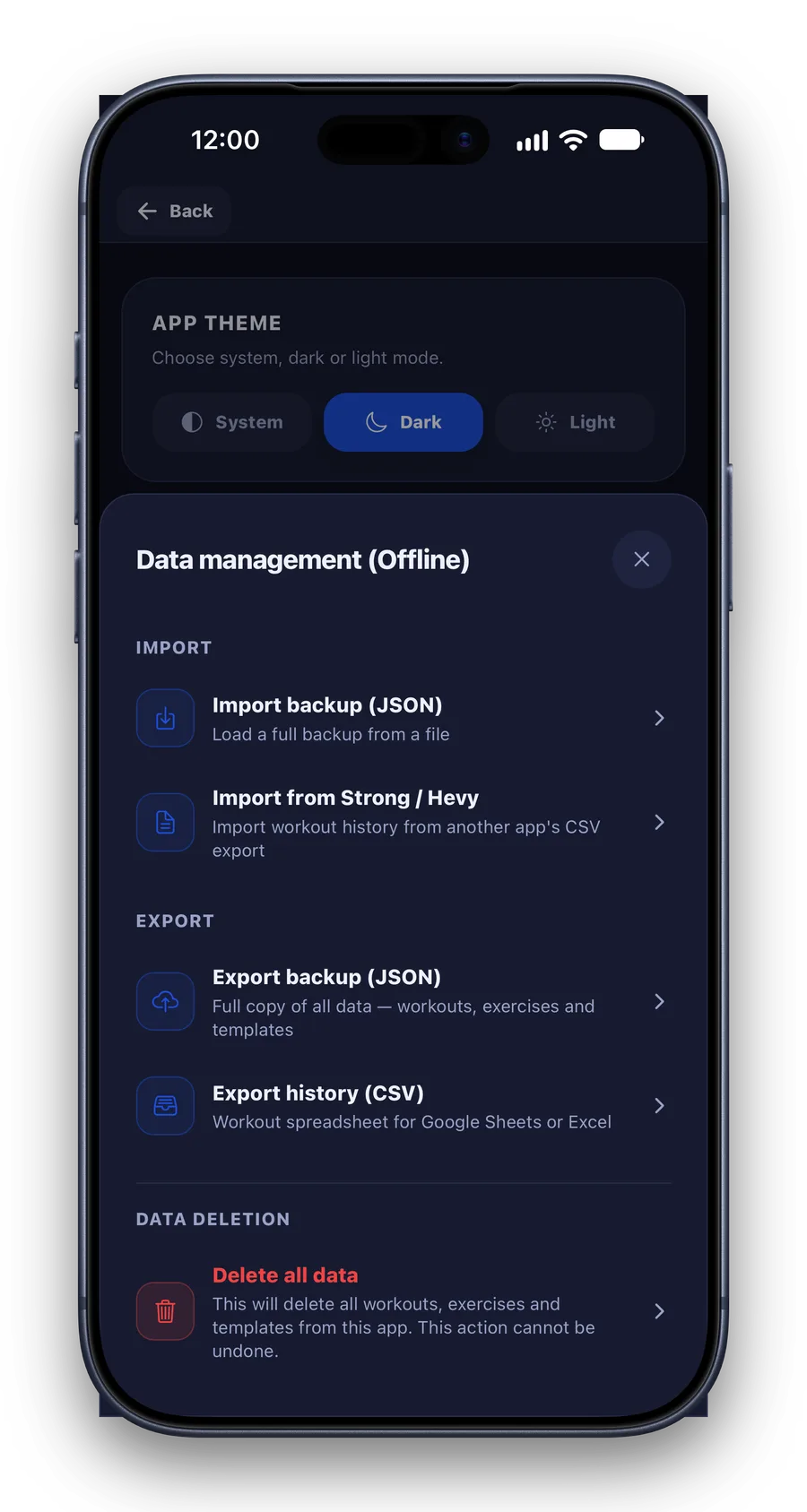
In Azimut, open Settings → Data management → Manage backups. Choose at least one backup location, then enable automatic backups.
- 1
Choose a backup location
- Google Drive: tap “Connect Google Drive”, then turn on “Back up to Google Drive”. Available on iOS and Android.
- iCloud Drive: on iOS, turn on “Back up to iCloud Drive”. Copies can be accessed from Files.
- Device folder: tap “Choose a folder” and pick a location in the system file picker. This works offline, but a folder stored only on the same phone will be lost with it.
- 2
Enable automatic backups
Turn on “Enable automatic backups”. Azimut then creates copies after saved changes and when you open the app. You do not need to export manually after every workout.
For protection against losing your phone, choose a cloud destination you can access from another device. A folder kept only on this phone is still on the phone.
A backup is not sync
Azimut stores the current workout history locally. A backup is a separate snapshot you can restore later; it does not keep multiple devices in step or merge their changes. When a cloud copy is available, the same backup file can be reached from another device, but the history is not continuously synchronized.
Full backup (JSON) or CSV?
A full JSON backup is meant to restore app data, including workouts, exercises, body measurements, and plans. CSV is a spreadsheet of workout history for tools such as Google Sheets or Excel; it is not a full backup and cannot restore all app data. In Settings → Data management → Manage data → Export, choose “Export backup (JSON)” or “Export history (CSV)”.
Restore your history
In Manage backups, choose an available copy and start Restore. Azimut checks the file and shows a summary before asking you to confirm. Restoring replaces the current data in the app; it does not merge it. If you need to keep the current history, create a backup of it first.
Move to another phone
Azimut does not sync workout history between devices. Keep a JSON backup in Google Drive or iCloud Drive, or move the file to the new phone. Then connect or open that location on the new device and restore the backup in Manage backups. A folder that exists only on the old phone cannot be reached if that phone is lost.
Questions about your backup?
Ask for help or share feedback with the Azimut team on Discord.
Azimut — Discord →